Updating the plugin
How a new PreviewMonitor plugin reaches your computer, the one-click update from the computer or the iPhone, and how to update by hand.
The plugin checks once a day for a new version and tells you in two places: the Setup window on the computer, and the iPhone app. Updating takes one click on the computer and about half a minute. Nothing installs until you click.
How you find out
The daily check
While Premiere or After Effects is open, the plugin checks for updates once a day. When there is a new version, it gets the installer ready in the background, so the update is one click away when you see the banner. A known update still shows after a restart, even offline.
On the computer
The Setup window shows a banner under its title:
| Banner | Button | What it means |
|---|---|---|
| PreviewMonitor version is available / You have version. | Download | The new installer isn't on your computer yet. Download opens previewmonitor.app/download in your browser. |
| PreviewMonitor version is ready to install / You have version. | Update now | The new installer is on your computer. One click starts it. |
| The PreviewMonitor version installer is open / Follow it to finish the update. | none | The installer is running. Finish it there. |
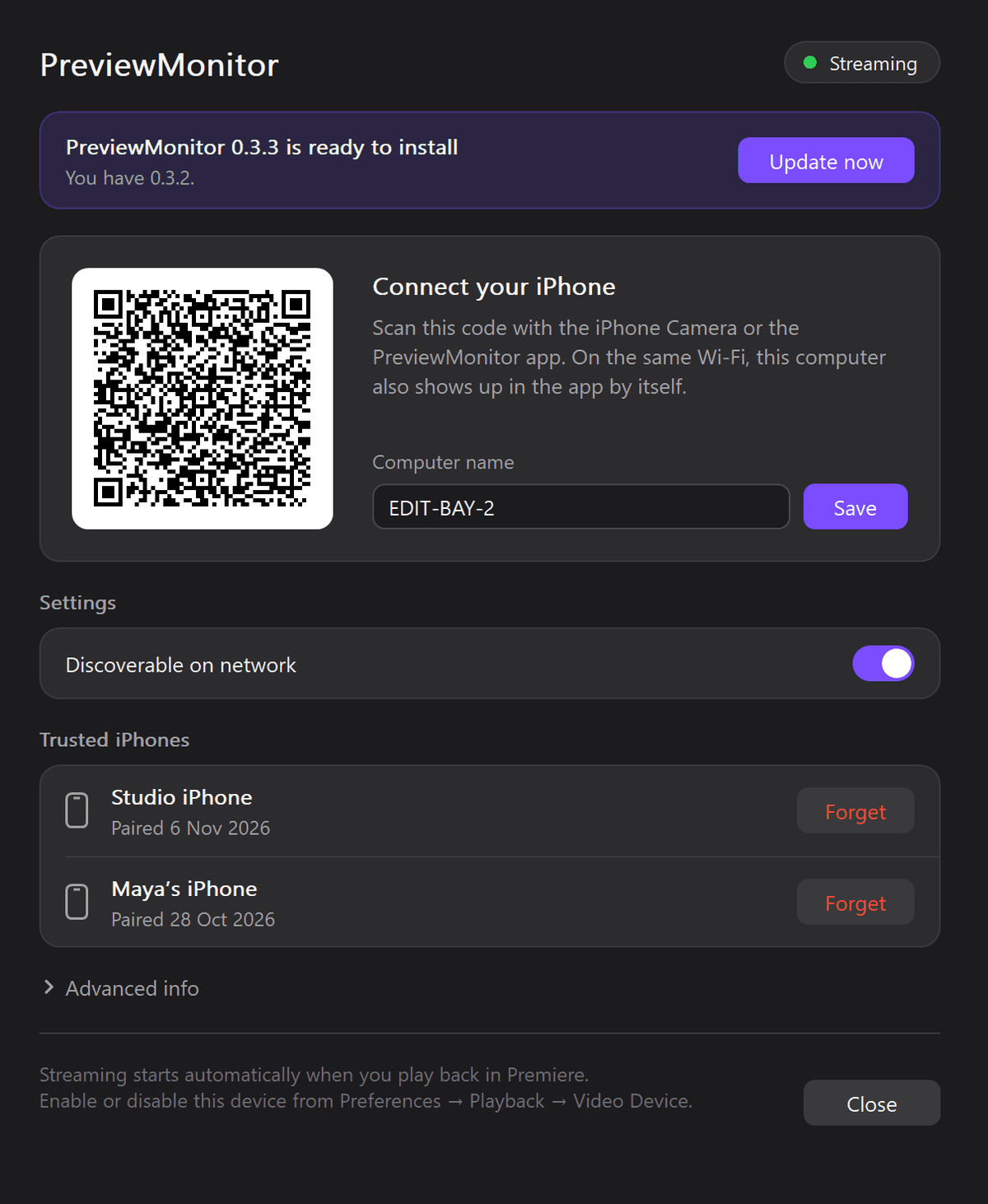 When the banner says ready to install, the update is one click away.
On the iPhone
The iPhone app knows the newest plugin version too, and the oldest one it still works with. What you see depends on which side of that line your computer is.
An update is available, and your plugin still works. You keep streaming. When a stream starts, the app shows a Plugin Update sheet once per session: Version version is ready, with Update Now and Not Now. Home also gets a Plugin Update Available row at the top of the list, with How to Update; swipe it left and tap Dismiss to hide it until the next version. While streaming, the stream settings (the gear in the live view) show a Plugin Update card with an Update Plugin button.
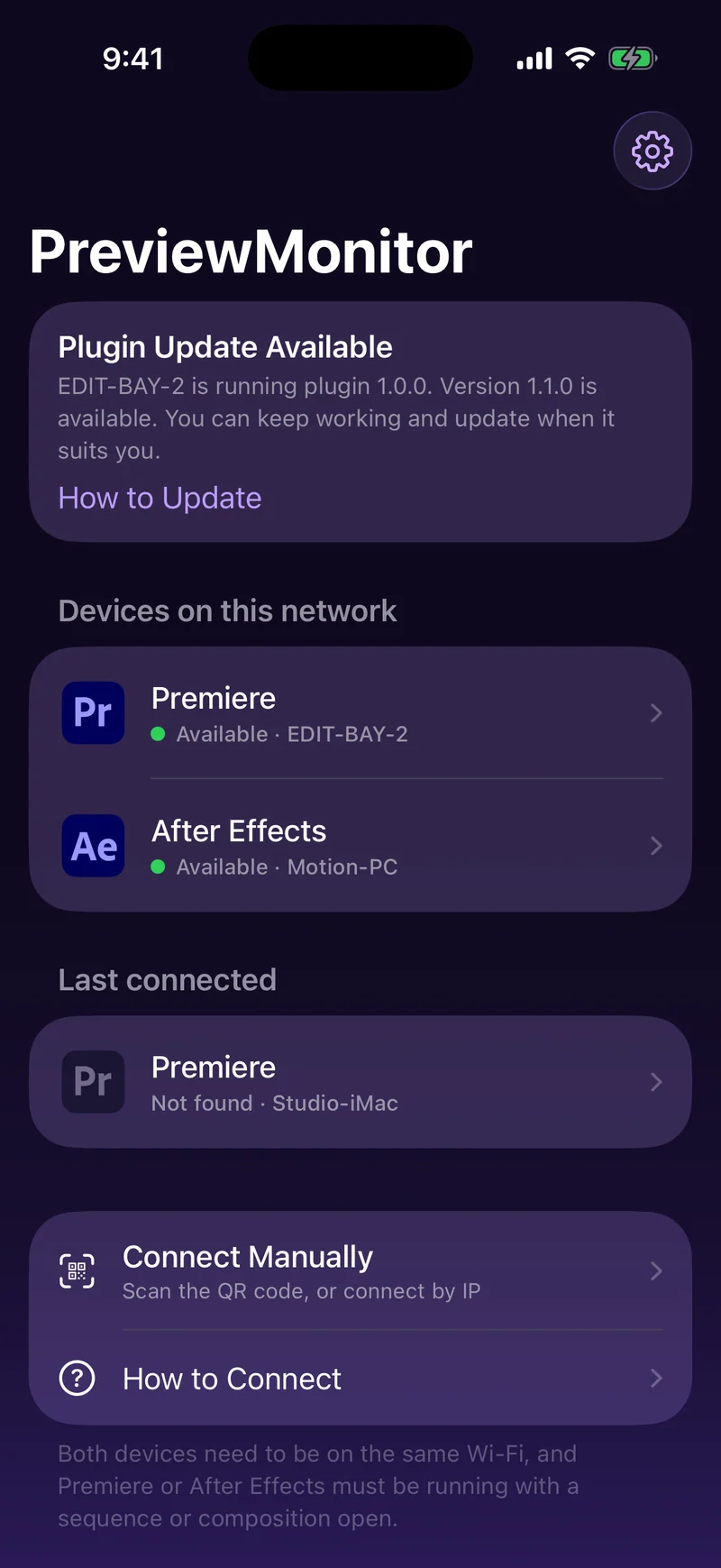 The update row appears only after you used a computer whose plugin is out of date.
An update is required. The plugin on the computer is older than the app supports. The app doesn't connect, and the Plugin Update sheet appears instead. You can close it with Not Now, but it comes back on every connection attempt until the computer is updated.
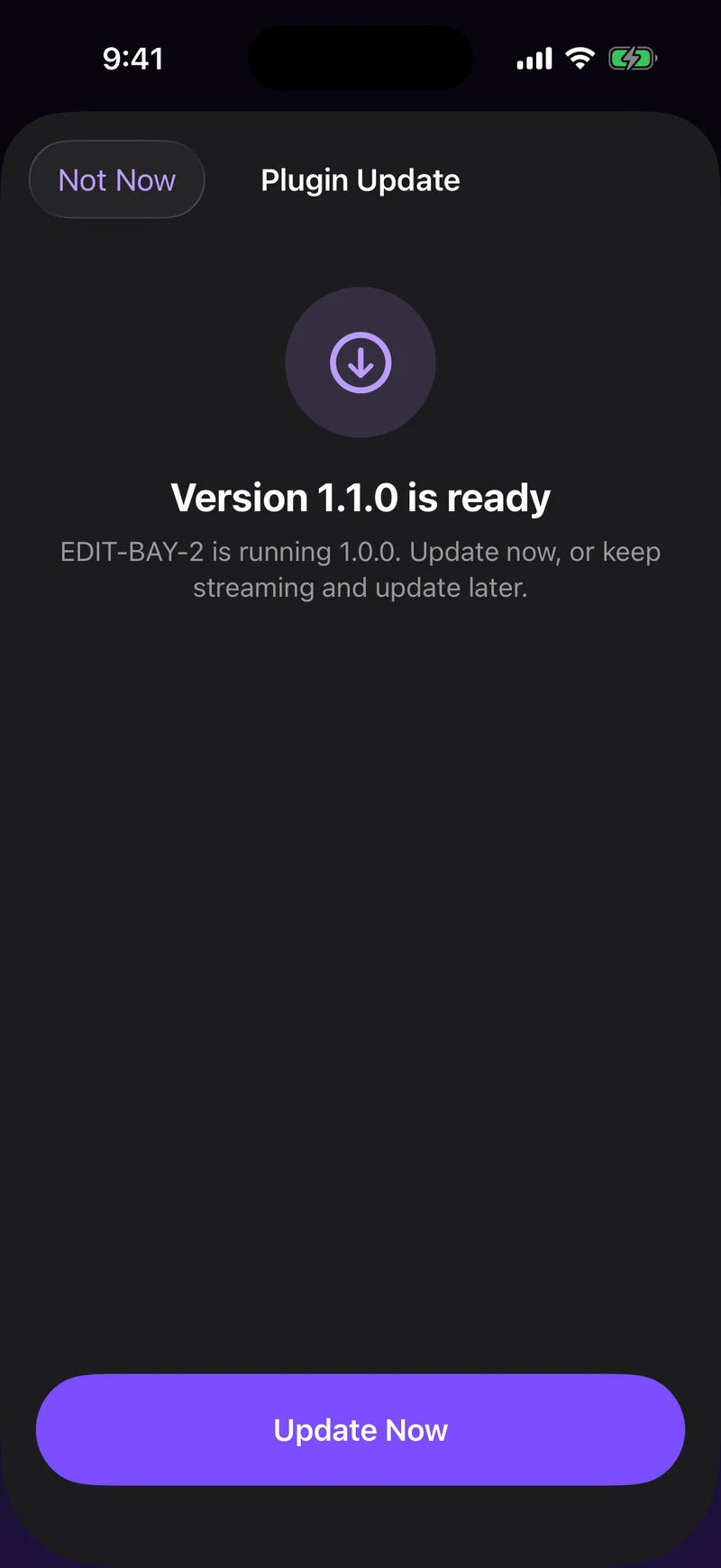 The sheet names the computer and the version it runs. This is the optional case ("keep streaming and update later"); when the update is required, the text asks you to update before you stream again.
Update in one click
You can start the update from the computer or from the iPhone. Both open the same installer.
From the computer
Open the Setup window and click Update now in the banner.
From the iPhone
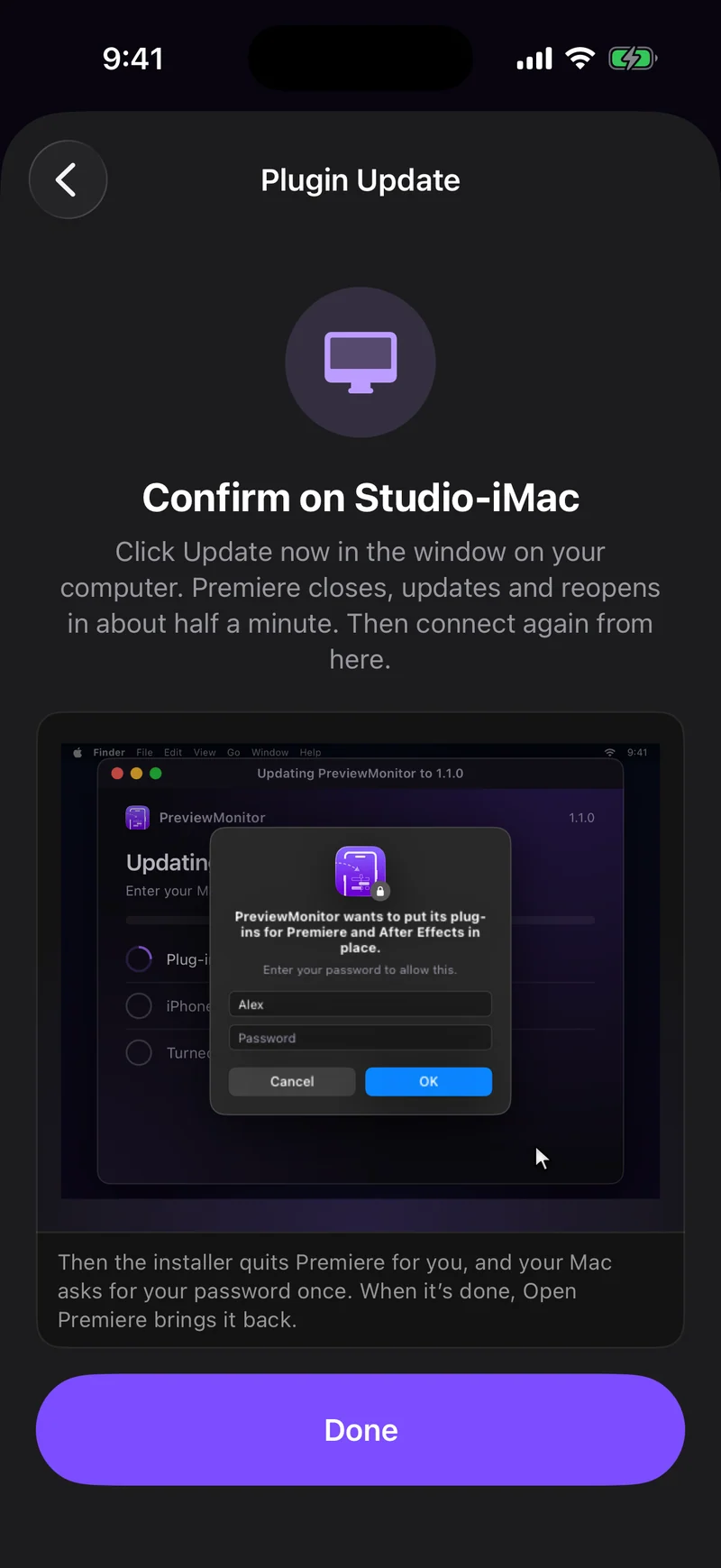 The phone only asks. The click that starts the update always happens on the computer.
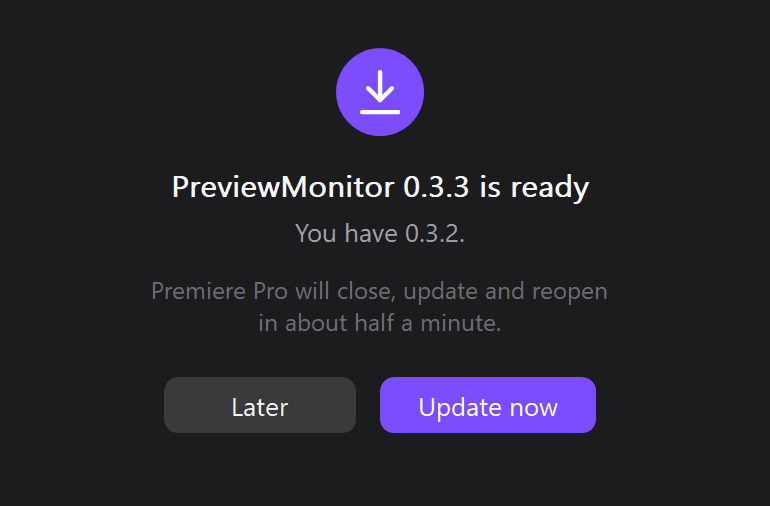 The panel the iPhone brings up on the computer. Later closes it and changes nothing.
What happens next
The update keeps PreviewMonitor turned on in the Adobe releases where it was on. Your computer name, Discoverable on network setting and trusted iPhones stay as they were, so nothing needs pairing again.
The installer waits until the Adobe apps are closed. It never force-quits them.
The update panel on the computer and the iPhone both say Premiere closes, updates and reopens by itself. It does not reopen on its own. After the installer finishes, start Premiere or After Effects from the installer's last screen or as you normally do, then connect again from the iPhone.
When the iPhone can't start the update
If the computer has no installer ready, or doesn't answer within a few seconds, the iPhone switches to an Install on computer page. Download the plugin on the computer from previewmonitor.app/download and run it. Copy Download Link puts the address on the phone's clipboard if you want to send it to yourself.
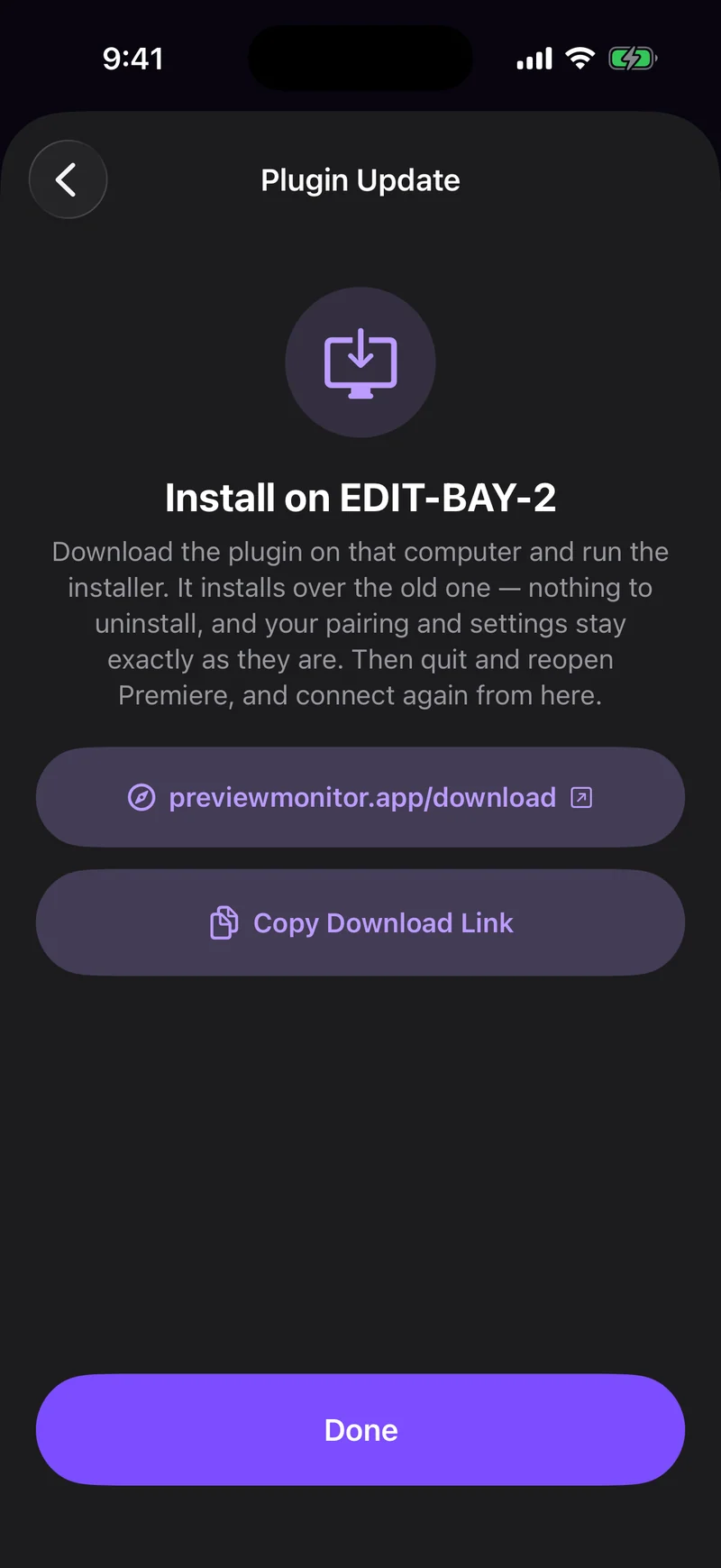 The manual route. The installer goes over the old version and keeps your pairing and settings.
Update by hand
On Windows the installer refuses to go backwards: running an older version over a newer one stops with A newer version of PreviewMonitor is already installed.
What the update does not do
- It never installs without your click on the computer. There is no "update when I quit".
- It doesn't reopen Premiere or After Effects for you.
- It doesn't update the iPhone app. The App Store does that.
- The daily check can't be turned off. If the computer can't reach the internet, you won't see update notices, and streaming works as before. The check sends nothing about you, your computer or your projects; Network and firewall lists what uses the internet.
Last updated on
Premiere and After Effects together
Running Premiere and After Effects on the same computer with PreviewMonitor: two sources, two pairings, shared settings, and what differs between them.
Logs and support reports
Where the PreviewMonitor plugin keeps its logs on Windows and macOS, and how to send us a report that gets your problem fixed fast.