Install & enable the plugin
Download the desktop plugin, restart your Adobe app, and switch PreviewMonitor on.
Install & enable the plugin
Setting up the desktop side takes four quick steps: install the plugin, restart your Adobe app, switch PreviewMonitor on, and confirm it shows up on your iPhone. You only do this once per computer.
The desktop plugin is free. The 7-day trial and subscription apply only to live streaming on the iPhone app — installing and enabling the plugin costs nothing.
1. Install the PreviewMonitor plugin
Download the plugin for your Mac or PC from the download page and run the installer.
- Windows is available now.
- macOS is coming soon.
The same plugin works with Premiere Pro, After Effects, and Media Encoder.
2. Restart your Adobe app
Quit and relaunch Premiere Pro (or After Effects) so the new plugin is loaded. If the app was open during installation, the plugin won't appear until you restart it.
3. Switch PreviewMonitor on
PreviewMonitor shows up as a Mercury Transmit device inside your Adobe app. Where you enable it depends on the app.
In the device list, PreviewMonitor currently appears under the internal name PremiereLive. When these steps say to tick PreviewMonitor, look for the PremiereLive checkbox.
In Premiere Pro
Go to Settings → Playback, then:
Your Playback settings should look like this:
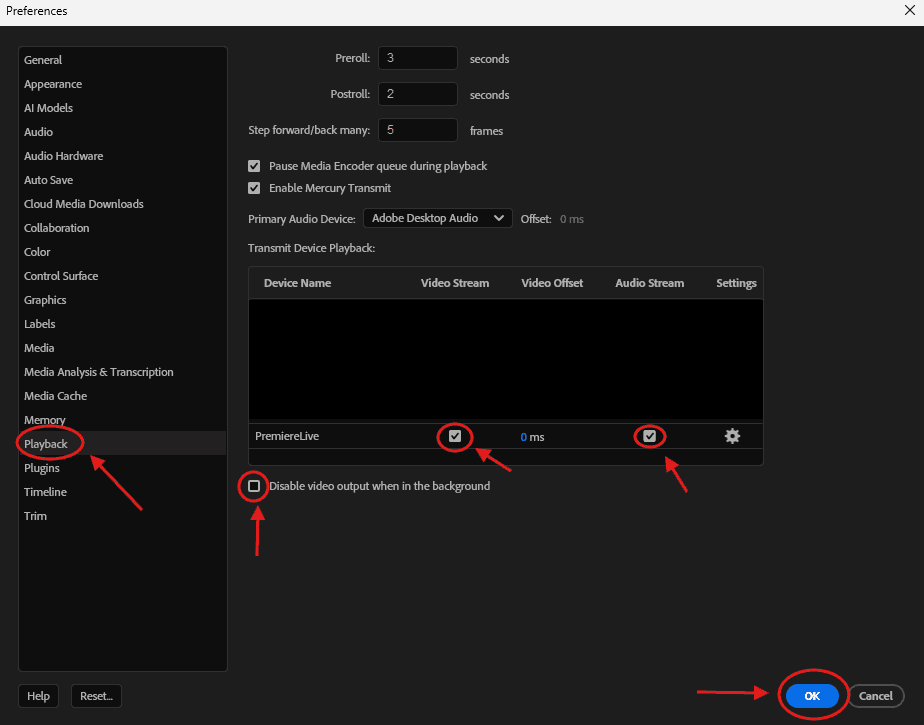
Video Stream and Audio Stream should be ticked, and "Disable video output when in the background" should stay unchecked.
In After Effects
Go to Settings → Video Preview, then:
4. Confirm it shows up on your iPhone
With your iPhone and your Mac or PC on the same Wi-Fi network, open the PreviewMonitor app. Your computer appears under "On this network" on the connect screen. Tap it to start streaming.
The plugin only goes live once a sequence (Premiere) or composition (After Effects) is open. If your computer doesn't appear yet, open any project and drop a clip into the timeline.
Next step
Computer not showing up, or want to connect a different way? Head to Connect your iPhone for auto-discovery, QR codes, the 6-digit code, and connecting by IP.