Edit Profile and Caption
Put your client's name, photo, caption and like counts into every social layout, so the preview carries the real text.
The network layouts draw a profile name, a photo, a caption and engagement counts over your picture. Out of the box they show a sample profile called PreviewMonitor. Replace it with the real account and the real caption, and the preview shows exactly how much of the frame the text will cover.
There is one profile for the whole app. The name, photo, caption and counts you set appear in every layout, on the live stream and in Preview from Photos or Files.
Open the card
Either way works:
- In the Layout card, tap Edit Profile & Caption (pencil icon) at the bottom. The Layout card turns into the Edit Profile card in place.
- Tap the name, the photo, the caption or a count on the overlay itself.
The button only appears while a network layout is chosen. Standard, Full Screen and Universal Safe Zone draw no profile, so they don't offer it.
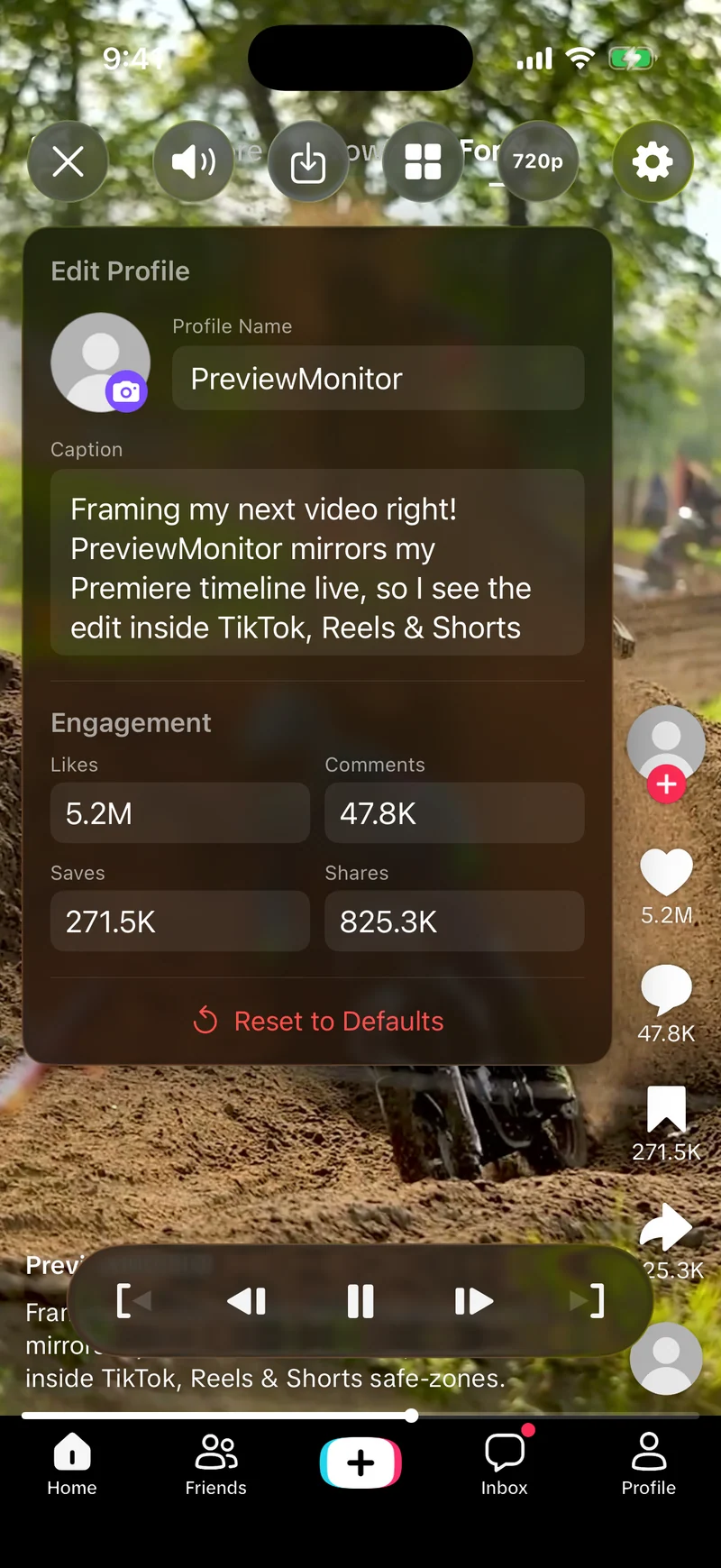 On TikTok the card offers the four counts TikTok's rail shows.
There is no Save or Done button. Every change appears on the overlay as you type and is kept when you close the app. Tap outside the card to close it.
The fields
| Field | What to enter |
|---|---|
| Photo | The round avatar at the top, with a camera badge. Tap it to change the photo. |
| Profile Name | The account name. The app does not capitalize or autocorrect it, so type it exactly as the handle is spelled. Default: PreviewMonitor. |
| Caption | The post's caption, several lines if you need them. On Instagram Stories this field is called Story comment. |
| Engagement | Count fields: Likes, Comments, Saves, Shares, Reposts. Only the counts the chosen layout draws are listed. |
| Reset to Defaults | Puts back the sample name, caption, photo and all five counts. |
The fields have no character limit. The layout cuts long text where the real app would (see How much caption shows).
Counts are plain text, so write them the way the network shows them: 5.2M, 47.8K or 1,672. The defaults are Likes 5.2M, Comments 47.8K, Saves 271.5K, Shares 825.3K and Reposts 92.7K. Set realistic numbers for the account. A count of 12 takes less room on the rail than 5.2M, and the preview shows the difference.
Hashtags and @mentions appear as ordinary caption text, in the same color as the rest. The layouts don't highlight them.
The default caption is: "Framing my next video right! PreviewMonitor mirrors my Premiere timeline live, so I see the edit inside TikTok, Reels & Shorts safe-zones."
Reset to Defaults in this card is separate from Reset to Defaults in the stream settings, which leaves your profile and caption alone.
Fields per layout
The card changes with the layout. This is what each one offers.
| Layout | Caption field | Counts offered |
|---|---|---|
| TikTok | Caption | Likes, Comments, Saves, Shares |
| Instagram Reels | Caption | Likes, Comments, Reposts, Shares, Saves |
| YouTube Shorts, Current design | Caption | Likes, Comments |
| YouTube Shorts, Previous design | Caption | Likes, Comments, Reposts |
| Facebook Reels | Caption | Likes, Comments, Saves |
| Snapchat Spotlight | Caption | Likes, Comments, Reposts, Shares |
| X Video, X Timeline | Caption | Comments, Reposts, Likes |
| Reddit Video, Reddit Feed | Caption | Likes (shown as the vote count), Comments, Reposts |
| Instagram Feed | Caption | Likes, Comments, Reposts, Shares |
| Facebook Feed | Caption | Likes, Comments, Shares |
| Caption (not drawn) | Likes | |
| Instagram Stories | Story comment | None |
| Facebook Stories | None | None |
| Snapchat Stories | None | None |
| TikTok Stories | Caption (not drawn) | None |
Pinterest and TikTok Stories do not show a caption, so whatever you type in Caption there has no effect on those two previews. It still appears in the other layouts.
The YouTube Shorts buttons without a count (Save, Share and Remix on Current; Dislike and Share on Previous) are fixed labels. Facebook Feed's reaction icons are fixed too; only the counts are yours.
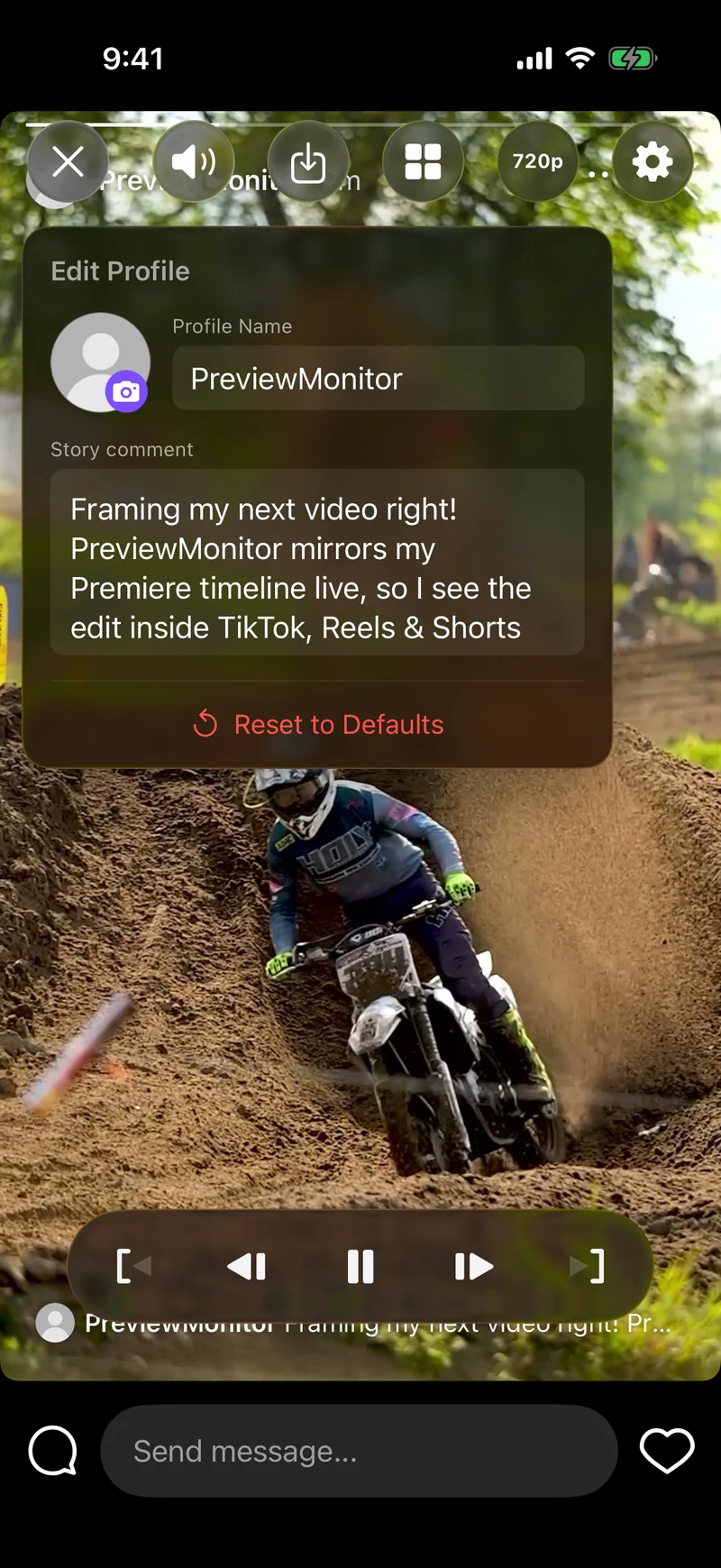 On Instagram Stories the caption becomes a story comment, and the Engagement section is gone.
Change the profile photo
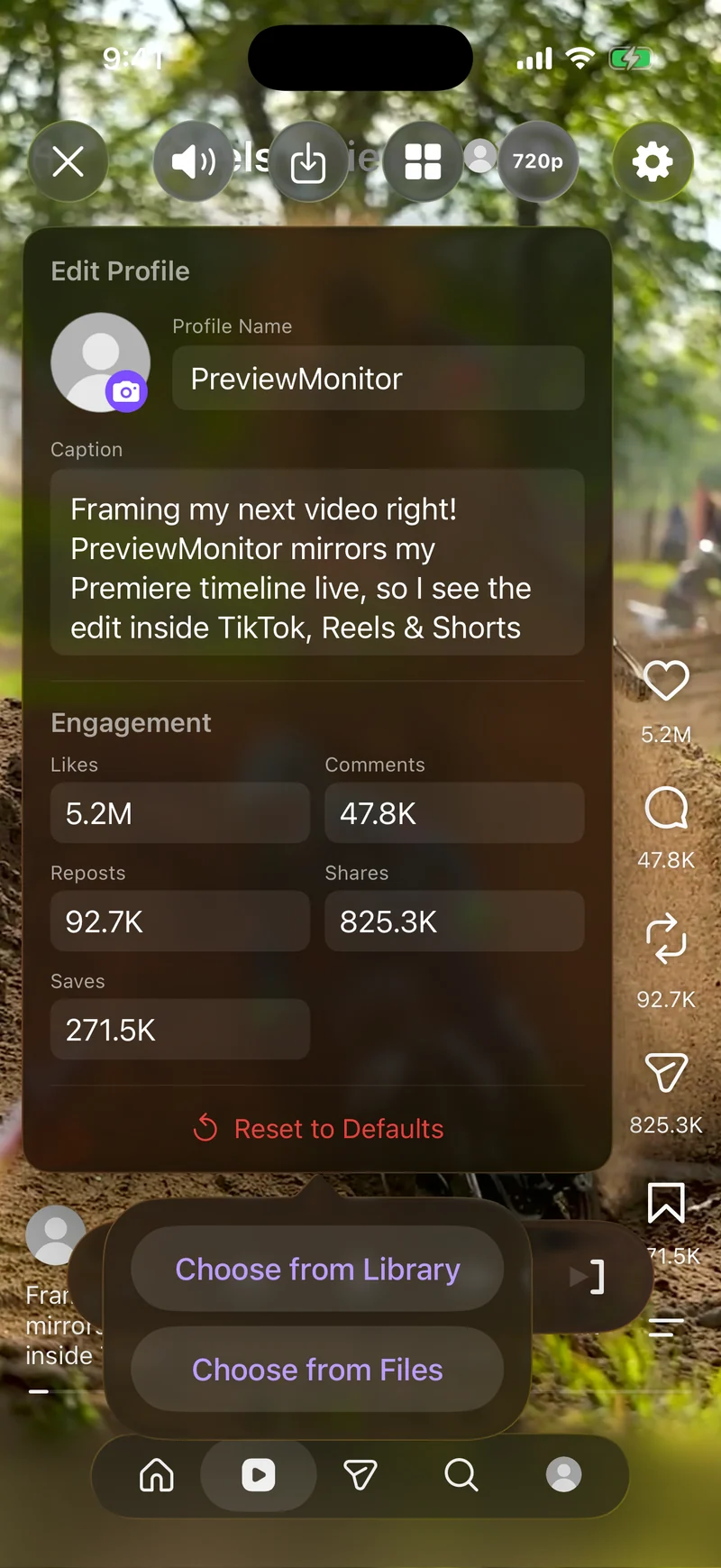 Choose from Library opens the iPhone photo picker without asking for access to your whole library.
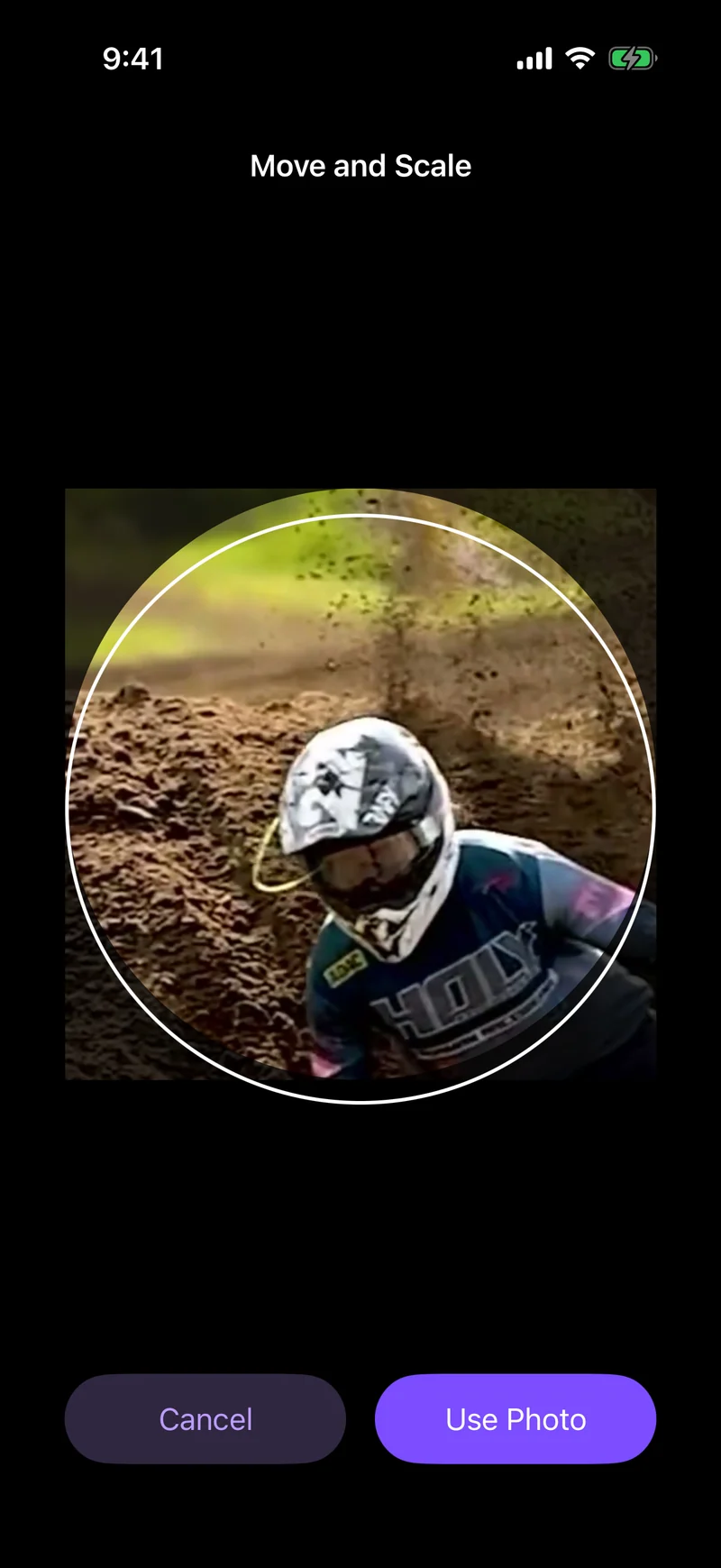 Only what is inside the circle is used. You can zoom out until the photo just fills the circle, and in to eight times that.
The app keeps a small copy of the cropped photo (512 pixels across at most), which is plenty for an avatar.
Where each value appears
| Layout | Name | Photo |
|---|---|---|
| TikTok | Username above the caption | Rail profile picture (with the pink follow + on top) and the spinning sound disc |
| Instagram Reels | Next to the photo, with "· Follow" | Beside the name and in the Profile tab |
| YouTube Shorts, Current | Next to the photo | Beside the name, as the sound cover, and in the Profile tab |
| Facebook Reels | Next to the photo, with a Follow button | Beside the name and in the Profile tab |
| Snapchat Spotlight | Above the caption and in "Original Sound · name" | Top left, on the rail with a yellow + and on the sound tile |
| X Video, X Timeline | As the name and as @name | Beside the name |
| Reddit Video, Reddit Feed | As r/name (and u/name on Reddit Video) | At the network's own position |
| Instagram Feed | Post header, "name · Original audio", and before the caption | Post header, with a story ring |
| Facebook Feed, Pinterest | At the network's own position | At the network's own position |
| The four Stories layouts | Top left, next to the photo | Top left |
Text is set in TikTok Sans on TikTok and TikTok Stories, Roboto on YouTube Shorts, Avenir Next on Snapchat, and the iPhone's system font everywhere else.
 Your photo replaces TikTok's rail avatar, and the follow badge stays on top.
How much caption shows
- TikTok, Instagram Reels and YouTube Shorts: up to five lines (three on smaller iPhones). The name stays on one line.
- Facebook Reels, Snapchat Spotlight, the Instagram Stories comment and every Posts layout: one line, cut off with "…".
Paste the caption the client approved. Whatever runs past the visible lines is cut off in the preview, and the visible lines show how far up the frame the text block reaches.
Last updated on