App settings
Every row in the iPhone app's Settings sheet, from Help and Appearance to Usage Analytics and Reset App.
The Settings sheet holds help links, the app's appearance, the analytics switch, legal pages, the version number and the reset button. Open it with the gear at the top right of the Home screen; Done closes it. Picture and stream options live elsewhere, in the gear on the live monitor (see Picture quality).
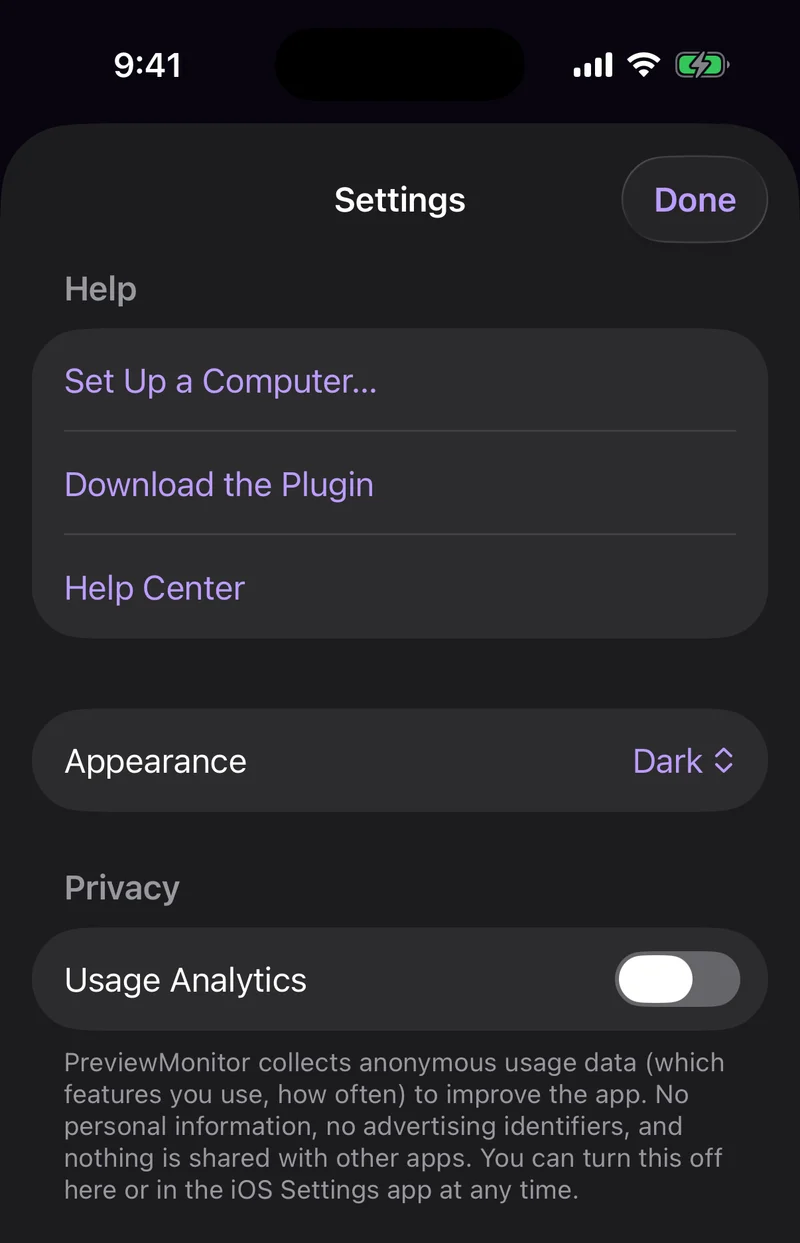 The sections run in this order: Help, Appearance, Privacy, Legal, About, and the reset button at the bottom.
Help
- Set Up a Computer… closes Settings and opens the setup wizard over Home, the same one as Get Started on Home.
- Download the Plugin opens previewmonitor.app/download in your browser. The plugin installs on the computer, so open the same address there.
- Help Center opens these docs.
Appearance
The Appearance picker has three options:
- Dark, the default, whatever the iPhone is set to.
- Light.
- Automatic, which follows the iPhone's Light or Dark setting.
The change applies at once to Home and everything opened from it: Settings, the setup wizard and the help sheets. The live monitor and the QR scanner stay dark in every mode. The app always opens on a black launch screen, so in Light you see a brief black flash at launch.
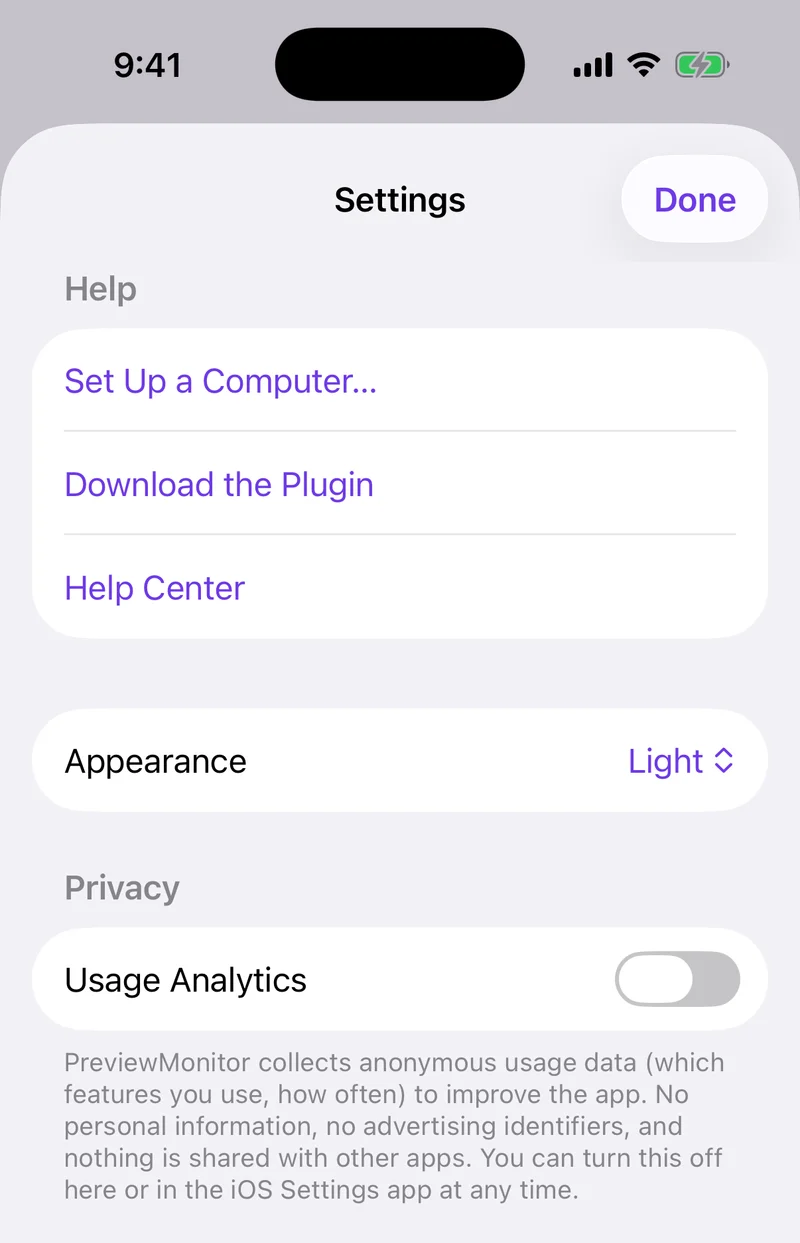 Light applies to the menus only. The live picture is always framed in black.
Privacy
The Usage Analytics switch is on by default. Turn it off and the app stops collecting usage data altogether. The same switch appears in the iOS Settings app under PreviewMonitor; a change there applies the next time you bring the app to the front. What the analytics include and what never leaves the phone: Privacy and data.
Legal
- Privacy Policy opens previewmonitor.app/privacy.
- Terms of Use opens previewmonitor.app/terms.
- Acknowledgements lists the fonts and open-source components inside the app, each with a View license link.
About
Version shows the app's version. Include it when you contact support.
Reset App
Reset App… at the bottom, in red, returns the app to the state of a fresh install. Tap it, then confirm with Erase Everything in the Reset PreviewMonitor? bubble, or tap outside the bubble to back out.
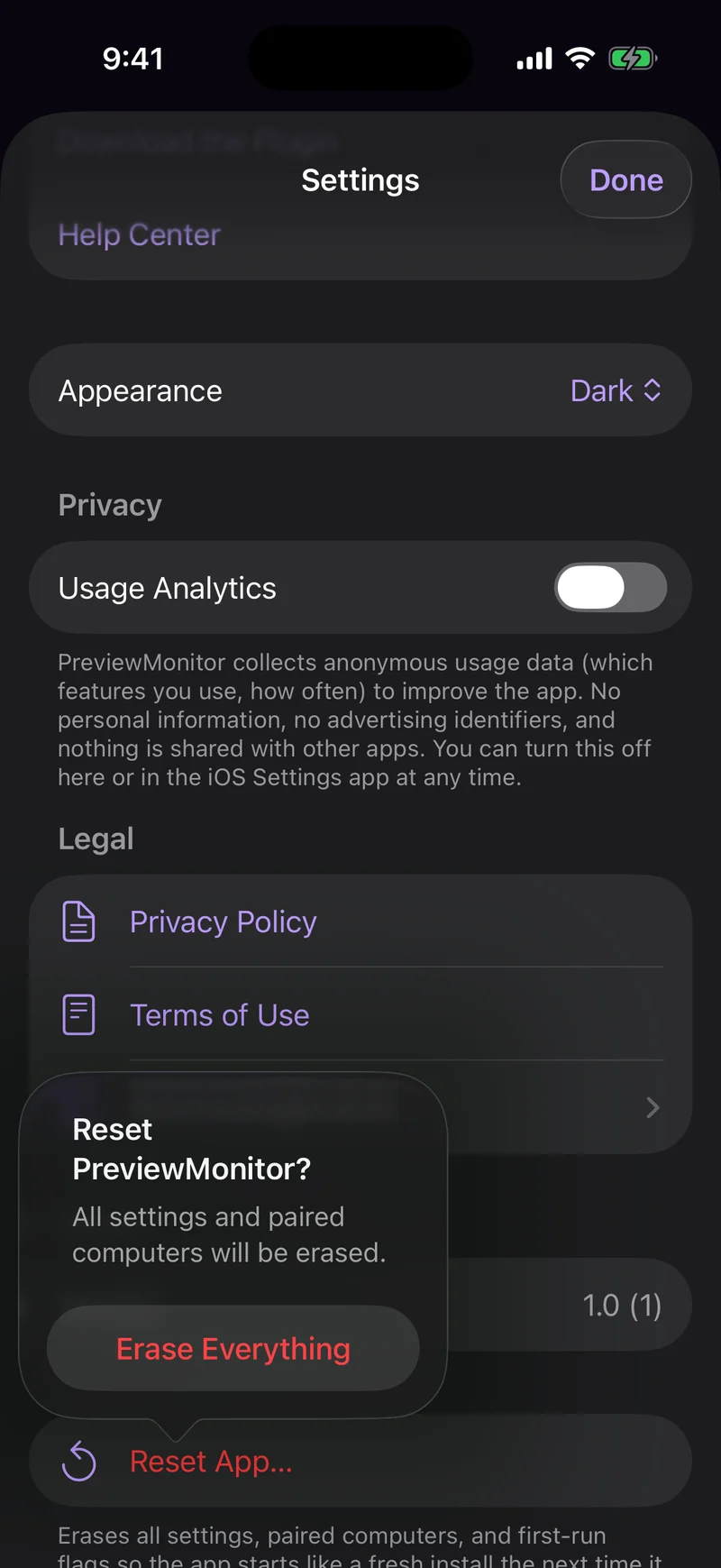 The bubble warns that all settings and paired computers will be erased.
A reset gives this iPhone a new identity. Every computer asks for a new pairing code the next time you connect, in Premiere and in After Effects.
What a reset erases:
- Every remembered computer and its pairing.
- Your stream settings, layouts, safe-zone options, caption and profile photo.
- Clips you opened with Preview from Photos or Files (the originals in Photos or Files are untouched).
- Dismissed plugin-update reminders and the app's first-run tips.
- The analytics ID, so the app counts as a new install.
What it keeps:
- The iOS permissions for Local Network, Camera and Photos. Change those in the iOS Settings app. The Local Network permission can only be reset by deleting the app.
- The list of trusted iPhones on each computer. Remove the old entry there if you like; see Pairing and trusted iPhones.
When the reset is done, the Reset complete alert asks you to close the app from the App Switcher and open it again. The app can't quit by itself, so the reset takes full effect on that next launch.
Last updated on