Gestures and orientation
Tap, double tap, pinch, pan and peek on the picture, the Max Zoom limit, landscape behavior and why the iPhone stays awake.
The picture responds to the same gestures as a photo in the Photos app, plus one extra: pinching the picture smaller than normal size to peek at the whole frame behind a social layout. The same gestures work in the live view and when you preview a clip from Photos or Files.
Gestures on the picture
| Gesture | What it does |
|---|---|
| Tap once | Shows or hides all controls. See The live view. |
| Double tap | Zooms to 2.5× centered on where you tapped (or to your Max Zoom, if that is lower). Double tap again to go back to normal size. |
| Pinch apart | Zooms in, centered between your fingers, up to your Max Zoom. The picture bounces softly at the limit. |
| Drag while zoomed | Moves around the picture. It keeps gliding after you let go and stretches gently at the edges. |
| Pinch together below normal size | In a social layout, peeks at the whole frame (see below). In Standard, it stops at normal size. |
After a single tap, the controls appear after a very short pause, while the app checks that you didn't mean a double tap.
In a social layout, the overlay stays where it is while the picture zooms underneath it, so you can punch in on a face and still see where the caption and buttons fall.
Max Zoom
Set how far a pinch can go in gear → Display → Max Zoom. The slider stops at 2×, 3×, 4×, 6×, 8×, 10×, 15×, 20×, 25× and 30×. Default: 10×.
A high limit lets you check focus and fine detail at pixel level; a low one keeps a stray pinch from losing your framing. If you lower Max Zoom while zoomed in past the new limit, the picture eases back to it.
Zoom goes back to normal size when you change layout or rotate the iPhone. Saved frames never include your zoom: Save always captures the full picture. See Save a frame.
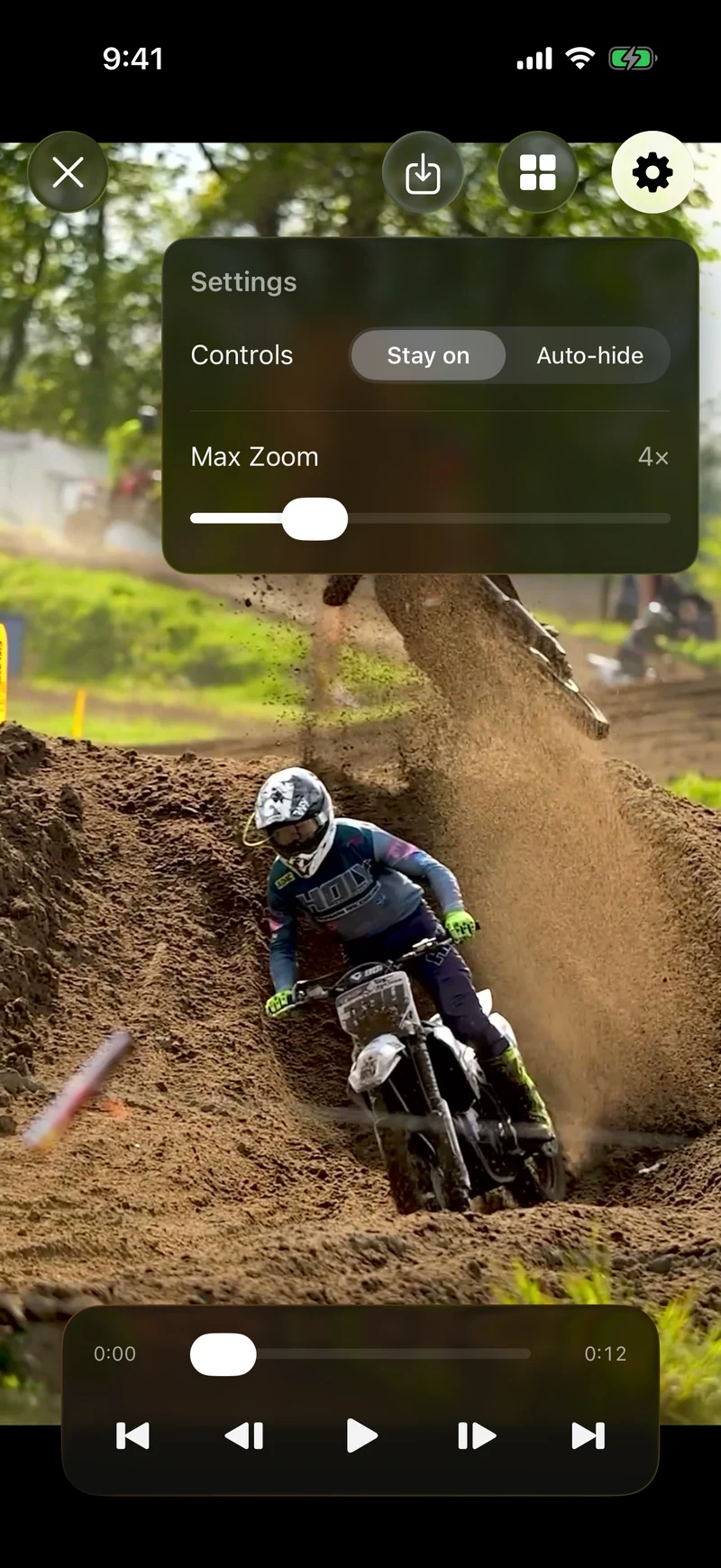 When you preview a clip from Photos or Files, Max Zoom sits in the clip's own settings card. It is the same setting as in the live view.
Peek behind a layout
With a social layout selected (any layout except Standard), pinch your fingers together past normal size. The layout and the controls fade out as you pinch, and the picture opens out to the whole source frame, letterboxed on black. By about three quarters of normal size the screen is clean. Let go and it springs back into the layout, which stays selected.
Use it to see what the layout's crop is cutting off, without switching to Standard and back. Layouts are covered in Layouts.
Portrait and landscape
The live view and the clip preview turn with your iPhone: portrait and both landscape directions. Upside-down portrait is not supported. If the picture doesn't turn, check that Portrait Orientation Lock is off in Control Center.
How the picture fits depends on the layout:
- Standard shows the whole frame in both orientations, with black bars where the shapes differ. Turn the iPhone sideways to see a horizontal sequence larger.
- Full Screen and Universal Safe Zone keep working in landscape. The safe-zone guides follow the picture.
- Social layouts (TikTok, Reels, Shorts, the feeds and the rest) are portrait only, like the apps they imitate. In landscape the network's interface disappears, the picture shows whole, and a note in the middle reads PreviewMonitor: rotate to portrait for the TikTok preview (with the name of your layout). Turn the iPhone back to portrait and the layout returns.
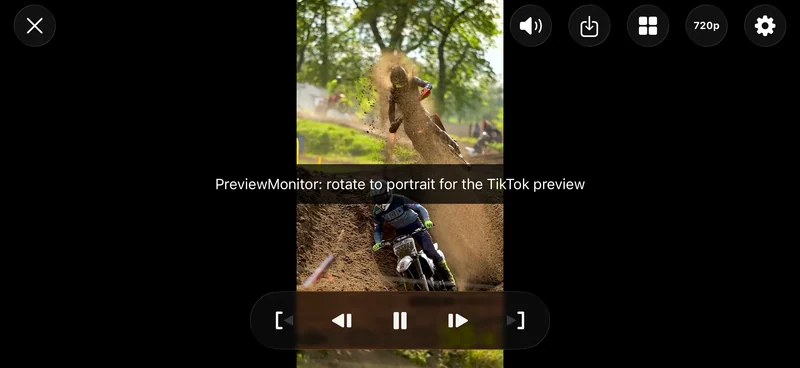 Your layout choice is kept. The Layout button stays in the controls, so you can switch layouts in landscape too.
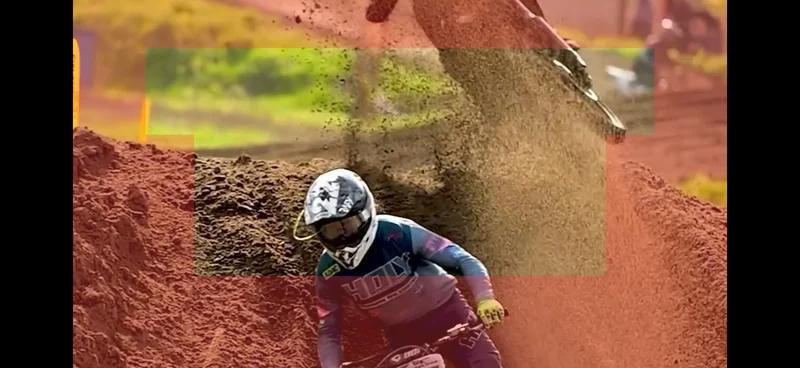 Universal Safe Zone works in landscape, drawn on the picture itself.
The screen stays awake
While a live stream is connected, your iPhone does not auto-lock, so the picture never goes dark in the middle of a review. Auto-Lock works normally again as soon as you disconnect.
When you preview a clip from Photos or Files, Auto-Lock follows your iPhone's own setting, so the screen can go dark while a clip sits paused.
With VoiceOver
VoiceOver reads the picture as one button, "Program monitor". Double tap it to show or hide the controls. While VoiceOver or Switch Control is on, the controls never fade by themselves, even in Auto-hide.
Last updated on